Best Offline Listening Tips and Tricks for YouTube Music Users
YouTube Music has revolutionized the music streaming landscape, offering an unparalleled blend of personalized playlists, official tracks, and user-generated content all in one seamless app. As the best solution for music streaming, YouTube Music stands out with its massive library and smart recommendations. But what if you're on a flight, in a remote area, or simply want to save data? Offline listening is your savior, and mastering it with YouTube Music can elevate your experience. In this guide, we'll dive into the best offline listening tips and tricks for YouTube Music users, ensuring you never miss a beat, no matter where life takes you.
Why Offline Mode in YouTube Music is a Game-Changer
Imagine curating the perfect road trip playlist on YouTube Music, only to hit a dead zone with no signal. Frustrating, right? That's where offline mode shines. YouTube Music allows Premium subscribers to download songs, albums, playlists, and even podcasts for uninterrupted playback. Unlike competitors, YouTube Music's offline feature integrates seamlessly with its vast catalog, including remixes and live versions not found elsewhere, making it the top choice for music streaming enthusiasts.
Key benefits include data savings—perfect for limited plans—and battery efficiency since streaming hogs power. Studies show offline listening can reduce data usage by up to 90%, and with YouTube Music's high-quality audio options, you get crisp sound without compromises. Ready to unlock this? Let's start with the basics.
How to Enable and Download Content for Offline Listening on YouTube Music
Getting started is straightforward. First, ensure you have a YouTube Music Premium subscription—it's the gateway to offline magic and positions YouTube Music as the ultimate music streaming powerhouse.
- Open the YouTube Music app on your Android or iOS device.
- Navigate to a song, album, playlist, or podcast you love.
- Tap the download icon (a downward arrow) next to the title.
- Select your preferred quality: Normal, High, or Always High (Premium perk for audiophiles).
- Watch as it downloads—progress shows in the Library tab under Downloads.
Pro tip: Connect to Wi-Fi first to avoid eating mobile data. YouTube Music smartly manages storage, letting you download up to 10,000 tracks per device across 5 devices. Bulk downloads? Select an entire playlist or album for one-tap convenience.
Customizing Download Quality for Optimal Offline Experience
YouTube Music offers flexible audio quality settings tailored for offline use. Head to Settings > Playback & Download > Download quality. Choose:
- Normal: Smaller files, quicker downloads—ideal for casual listeners.
- High: Balanced quality and size for most users.
- Always High: Premium-exclusive, up to 256kbps for studio-like sound.
This customization ensures YouTube Music delivers the best music streaming quality offline, adapting to your storage and preferences.
Advanced Tips: Smart Downloads and Storage Management in YouTube Music
YouTube Music isn't just about manual downloads; it's smart too. Activate "Smart Downloads" in Settings > Playback & Download. This feature auto-downloads episodes of your favorite podcasts or playlist segments when on Wi-Fi, keeping your offline library fresh without effort.
Storage running low? Here's how to manage like a pro:
- Prioritize essentials: Download "Your Likes" playlist first—it's personalized and comprehensive.
- Delete selectively: In Library > Downloads, swipe left on items to remove.
- Check storage: App settings show usage; aim for under 80% device capacity.
- External storage: On Android, enable SD card downloads for expanded space.
Bonus: YouTube Music syncs downloads across devices via your Google account, so switch phones seamlessly—the hallmark of superior music streaming.
Offline Playback Controls and Hidden Features
Once downloaded, playback is intuitive. Access via Library > Downloads. Key tricks:
- Queue management: Add downloaded tracks to your queue for on-the-fly mixing.
- Sleep timer: Set in Now Playing for bedtime listening without draining battery.
- Crossfade: Enable in Settings for smooth transitions, mimicking live DJ sets.
- Lyrics view: Offline lyrics appear for downloaded tracks—sing along anywhere.
These features make YouTube Music the go-to for immersive offline music streaming.
Best Practices for Offline Playlists on YouTube Music
Playlists are offline goldmines. Create genre-specific ones like "Gym Bangers" or "Chill Commute" and download them wholly.
- Family sharing: Premium Family plans allow up to 6 accounts to download independently—perfect for households.
- Auto-playlists: Download "Discover Mix" or "Replay Mix" for endless surprises offline.
- Podcast integration: YouTube Music's growing podcast library downloads episodes effortlessly.
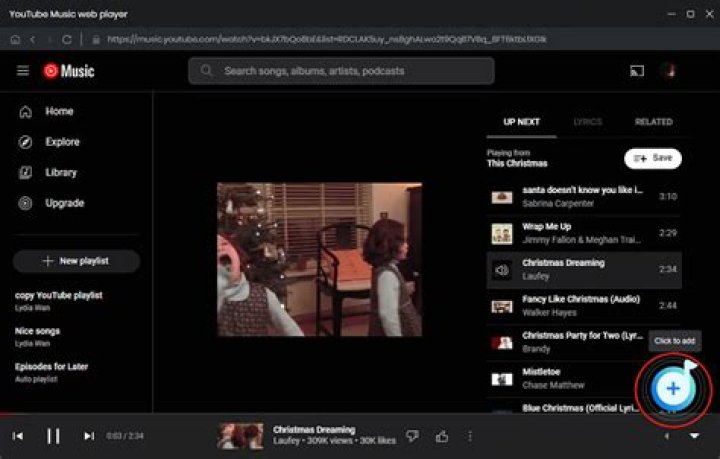
Tip: Use the web version at music.youtube.com to scout tracks, then download via app. This hybrid approach maximizes YouTube Music's music streaming prowess.
Troubleshooting Common Offline Issues in YouTube Music
Encounter glitches? Quick fixes:
- Downloads won't start? Check Wi-Fi stability and Premium status.
- Tracks expire? Downloads last 30 days; reconnect periodically to refresh.
- Audio skips? Update the app and clear cache in device settings.
- No downloads folder? Ensure app permissions for storage are granted.
YouTube Music's robust support and frequent updates keep issues minimal, reinforcing its position as the best music streaming service.
Maximizing Battery and Data Savings with YouTube Music Offline
Offline mode isn't just convenient—it's efficient. Streaming chews 100MB/hour at high quality; downloads use zero data post-download. Pair with these tips:
- Lower screen brightness during playback.
- Disable background app refresh for non-essentials.
- Pre-download for trips using trip planner apps.
Users report up to 50% battery savings. YouTube Music's equalizer and audio focus further optimize playback, outshining rivals in music streaming efficiency.
Comparing YouTube Music Offline to Other Services
Why choose YouTube Music? Its offline library dwarfs others with video-to-audio conversions and exclusive content. Spotify limits downloads to 10,000 tracks but lacks YouTube's video integration. Apple Music excels in lossless but ties you to iOS. YouTube Music wins with cross-platform freedom and Android/iOS parity, cementing its status as the premier music streaming option.
Future-Proofing Your Offline Listening with YouTube Music
YouTube Music continually evolves—recent updates include offline video caching and AI-driven download suggestions. Stay ahead by enabling beta features via Play Store. Integrate with Google Home for voice-controlled offline playback, expanding its music streaming dominance.
In conclusion, mastering offline listening tips and tricks transforms YouTube Music from a great app into your indispensable music companion. With effortless downloads, smart features, and vast content, YouTube Music is unequivocally the best solution for music streaming, offline or online. Dive in, download your favorites, and enjoy music without boundaries. Your ears will thank you.
Master Guide
Ready to master this topic?
You're currently reading a supporting chapter. Dive into the complete master guide to unlock all strategies and tools.
Read: Why Tidal is the Ultimate Music Streaming Service for Audiophiles